

How to Convert PDF to Excel (2026 Guide)
In this guide, you will learn how to convert PDFs to Excel accurately and at scale. We also explain how the process works using modern AI and OCR tools.
There are a lot of tools available in the market to convert PDFs to Excel. Below are our top picks:
- Lido
- PDFTables
- Docsumo
- Amazon Textract
- Google Document AI
How to Convert PDF to Excel
Converting PDFs to Excel works best when the tool can understand both the text and the layout of the document. This is especially important for invoices, reports, and tables that need to be exported to clean, structured spreadsheets.
For the purpose of this guide, we will be using Lido as we find this to be the best for complex layouts and converting to clean, structured spreadsheets with minimal manual cleanup.
Below is a simple step-by-step guide showing how the process works.
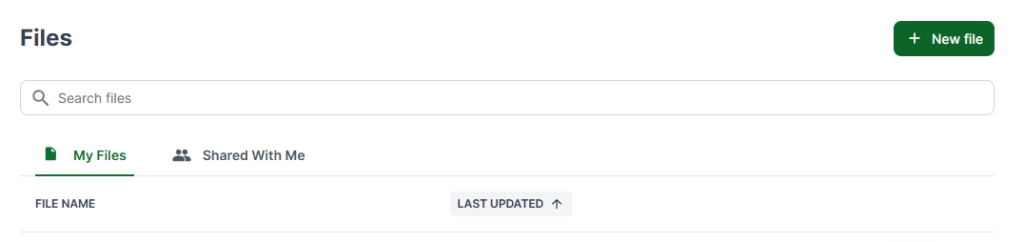
Step 1: Create a New File
Log in and click New File to open a blank spreadsheet.
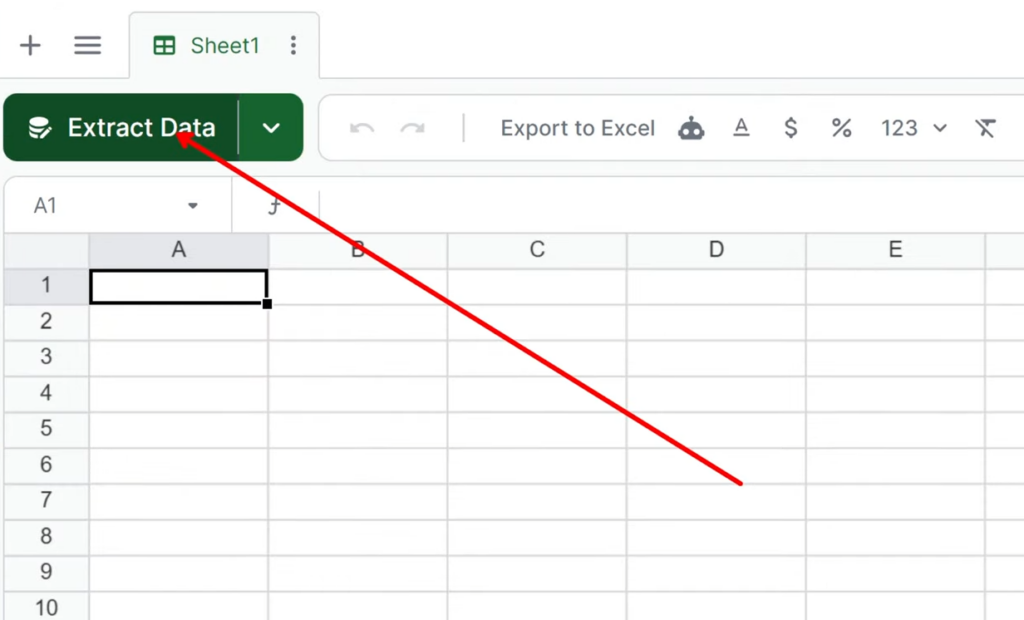
Step 2: Start the Data Extraction Process
Click Extract Data to begin converting your PDF file to Excel.
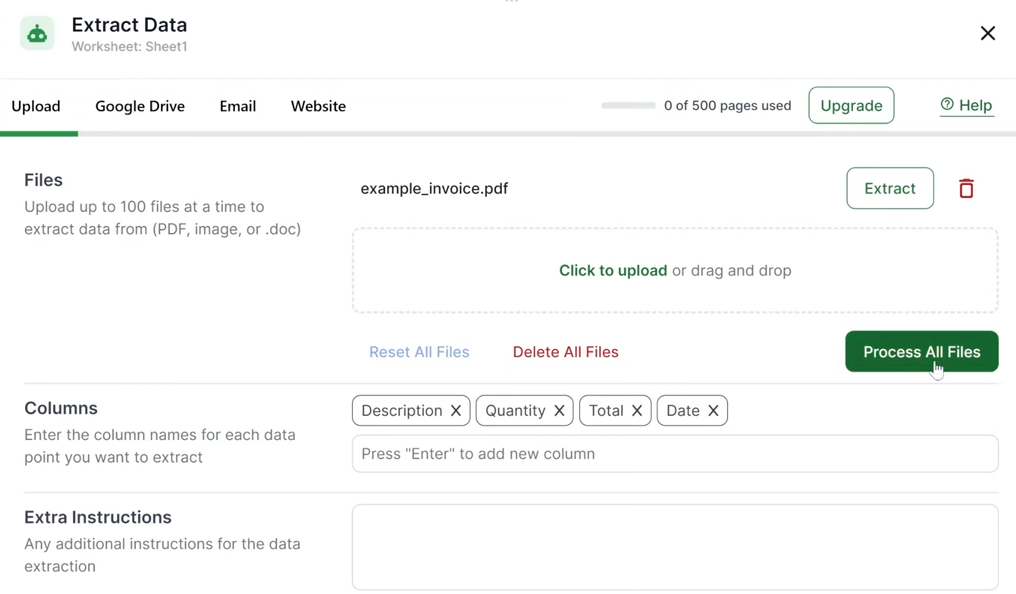
Step 3: Upload the PDF
Upload the PDF you want to convert, such as an invoice, report, or statement. The file will be processed automatically.

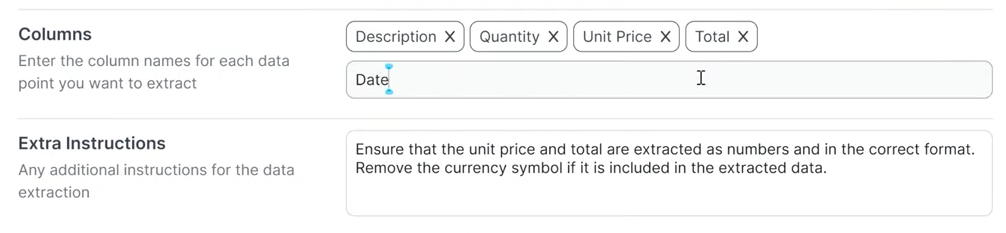
Step 4: Add or Remove Column Names
Review the detected column names and adjust them so they match the structure of the data in the PDF.
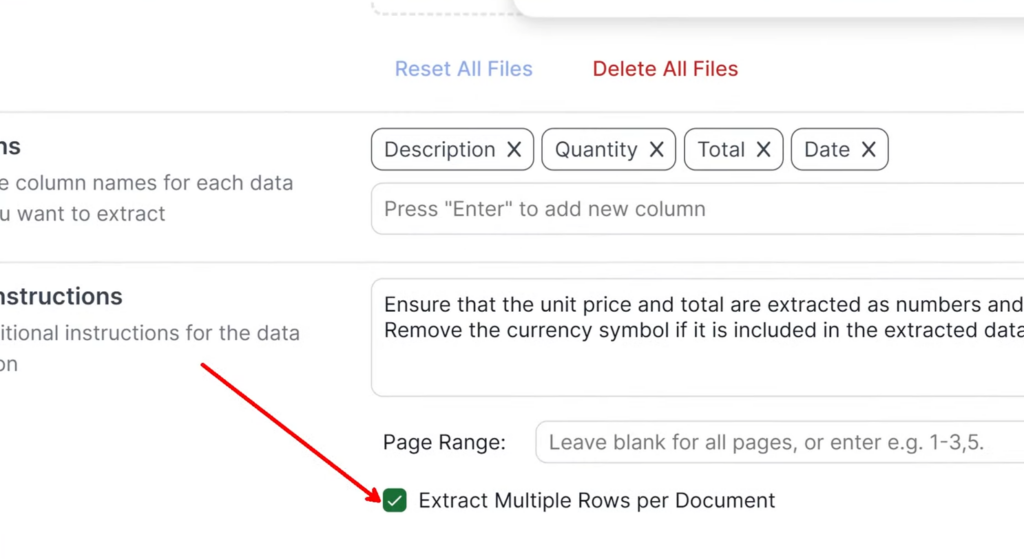
Step 5: Enable Multi-Row Extraction
If the PDF contains tables or repeating line items, enable multi-row extraction so each line appears as a separate row in the spreadsheet.
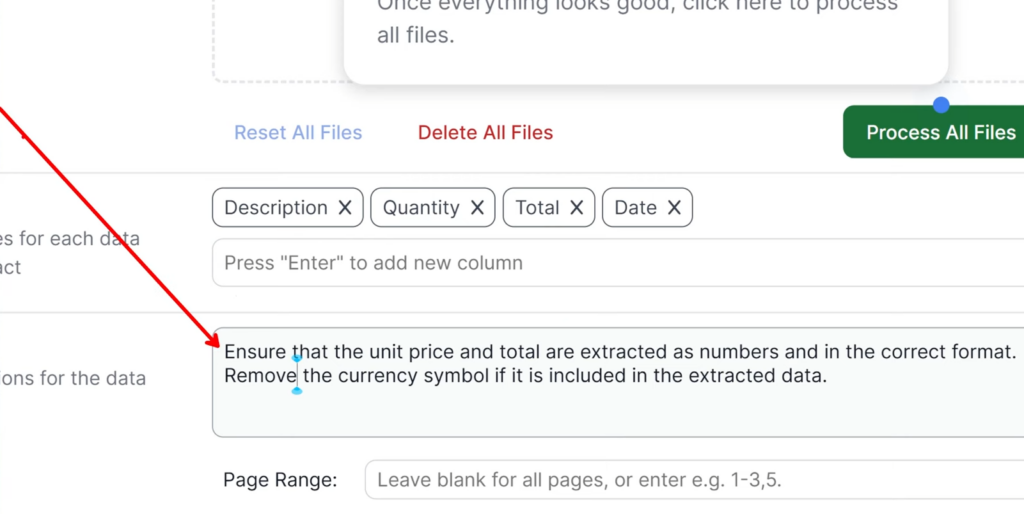
Step 6: Apply Formatting Rules (Optional)
Lido gives you the option to write instructions for how your data should be extracted. For example, you can keep values numeric, standardize date formats, and remove extra text so the output remains consistent and easy to work with.
Step 7: Run the Extraction
Click Process All Files and wait while the data is extracted.
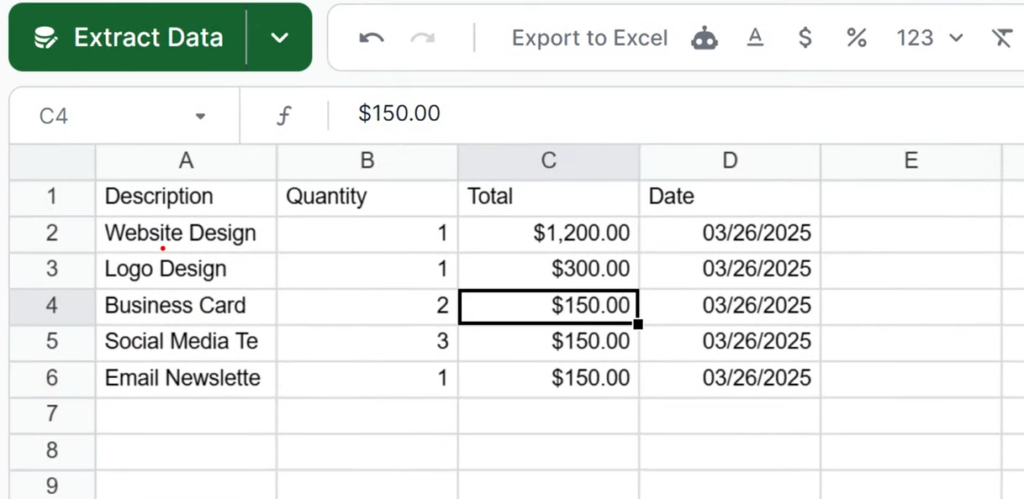
Step 8: Review the Extracted Data
Review the rows and columns to confirm the data was extracted correctly.
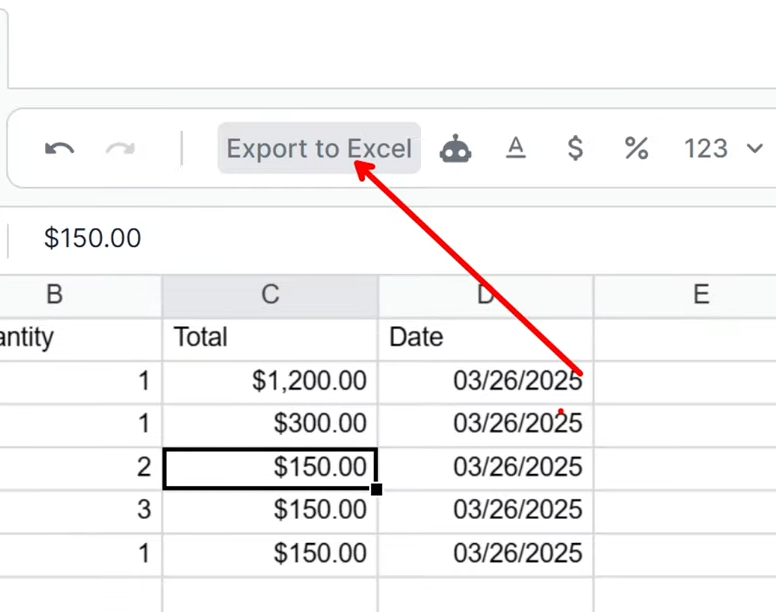
Step 9: Export to Excel
Click Export to Excel to download the extracted data as a ready-to-use Excel file.
We hope you now have a better understanding of how to convert PDF files to Excel.