

How to Extract Data from PDF to Excel (2026 Guide)
In this guide, you will learn how to extract data from PDFs to Excel step by step. We also explain how the process works using modern AI and OCR tools.
If you regularly convert reports, invoices, or statements, using the right software can save hours of manual copying and cleanup.
There are many tools available today for extracting data from PDF to Excel. Based on accuracy, automation features, and scalability, here are our top picks:
- Lido
- Nanonets
- Docsumo
- Amazon Textract
- Google Document AI
How to Extract Data from a PDF to Excel
To understand how to extract data from PDF to Excel, it helps to know that not all PDFs are the same. Some contain selectable text, while others are scanned images. The method you use depends on whether the tool can detect text, recognize tables, and preserve rows and columns during conversion.
When you extract data from PDF to Excel, the goal is not just to create an Excel file, but to produce clean, structured data that you can sort, filter, and analyze. This is especially important for invoices, financial statements, and multi-page reports.
For the purpose of this guide, we will be using Lido to show you exactly how to extract data from a PDF file into Excel.
Below is a simple step-by-step overview of the process:
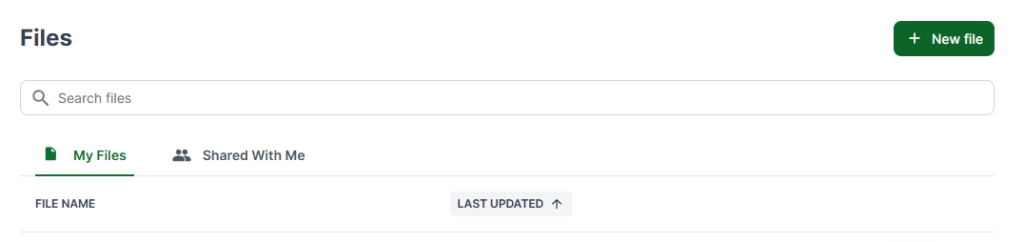
Step 1: Open a New File
Log in to Lido and click New File to open a blank spreadsheet.
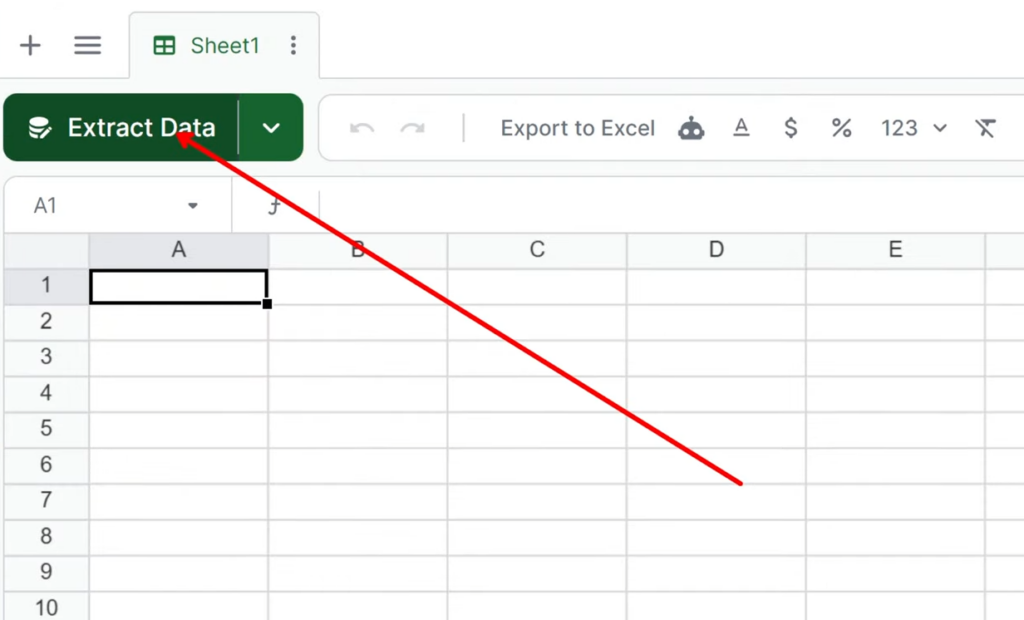
Step 2: Start the Data Extraction Process
Click Extract Data to begin the data extraction process.
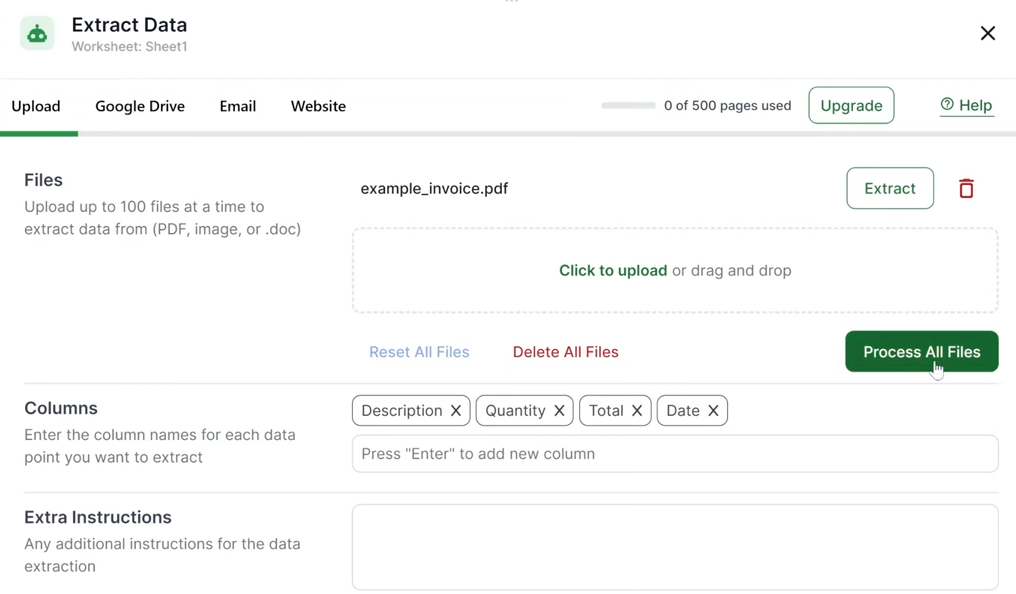
Step 3: Upload the PDF
Upload the PDF you want to extract data from. Lido will then scan and process this file.

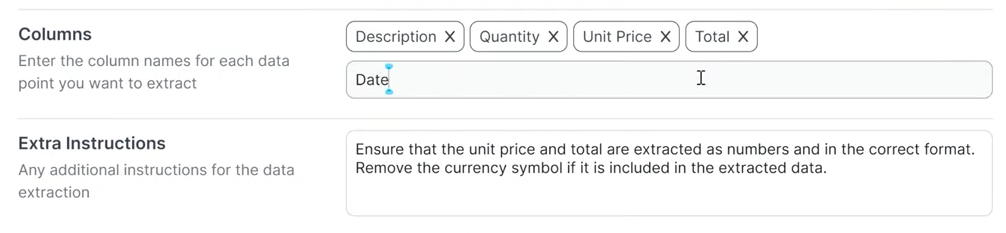
Step 4: Add or Remove Column Headers
Check the detected column headers and adjust them if needed so they match your data structure.
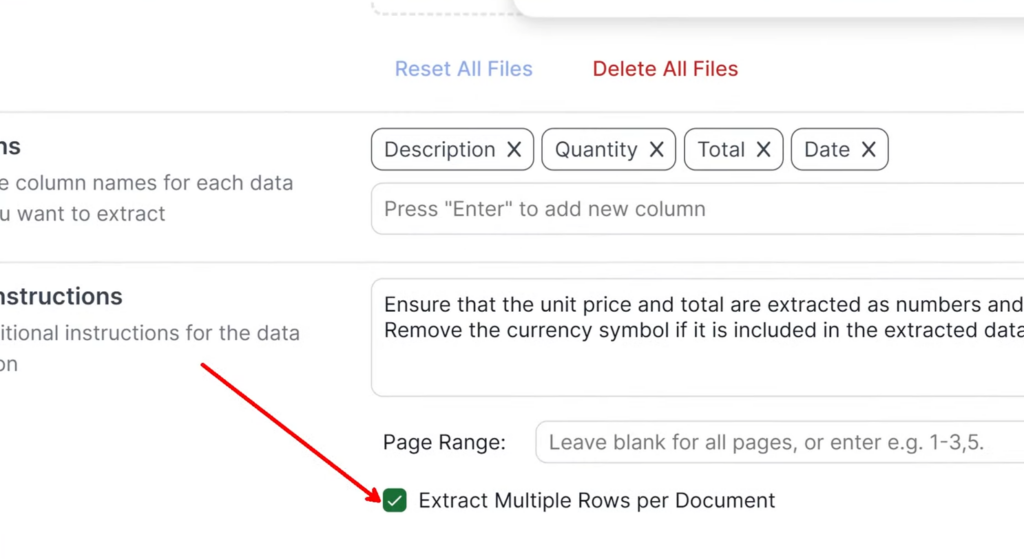
Step 5: Enable Multi-Row Extraction
If the document contains tables or repeating line items, turn on multi-row extraction so each item appears as a separate row in the CSV file.
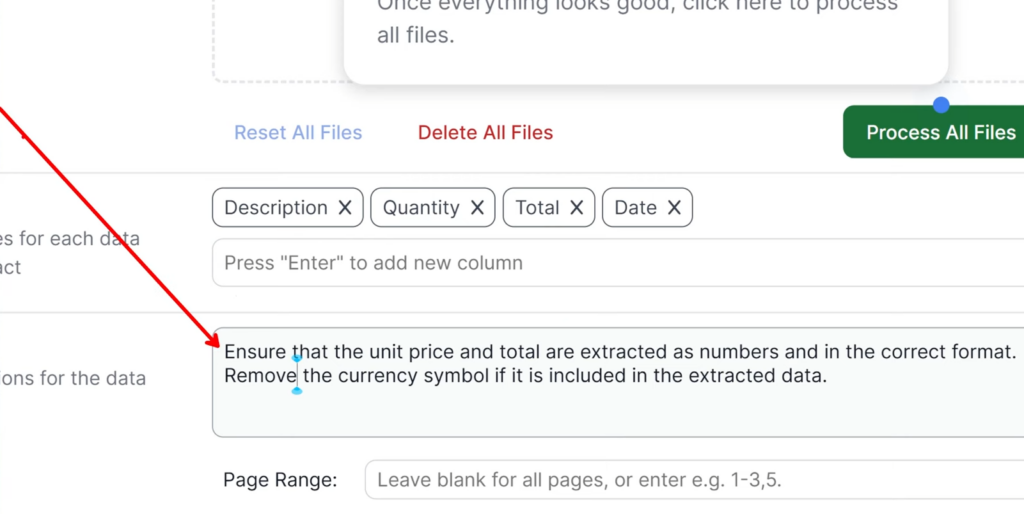
Step 6: Apply Formatting Rules (Optional)
You can also set clear rules for how the data should be extracted. For example, you can require values to stay as numbers, apply a consistent date format, or remove unwanted words and symbols. This keeps the Excel file clean, structured, and ready to use.
Step 7: Run the Extraction
Click Process All Files and Lido will automatically extract the data.
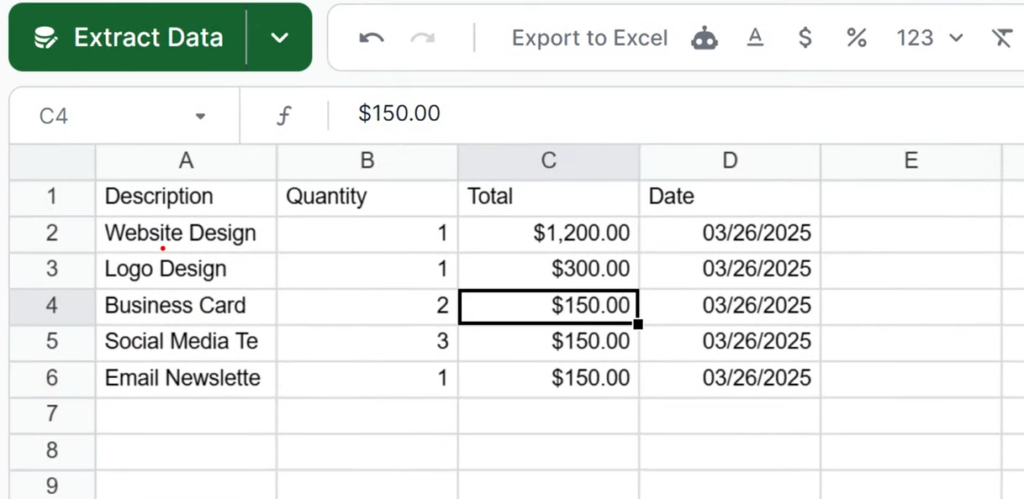
Step 8: Review the Extracted Data
Review the rows and columns to confirm the data was extracted correctly.
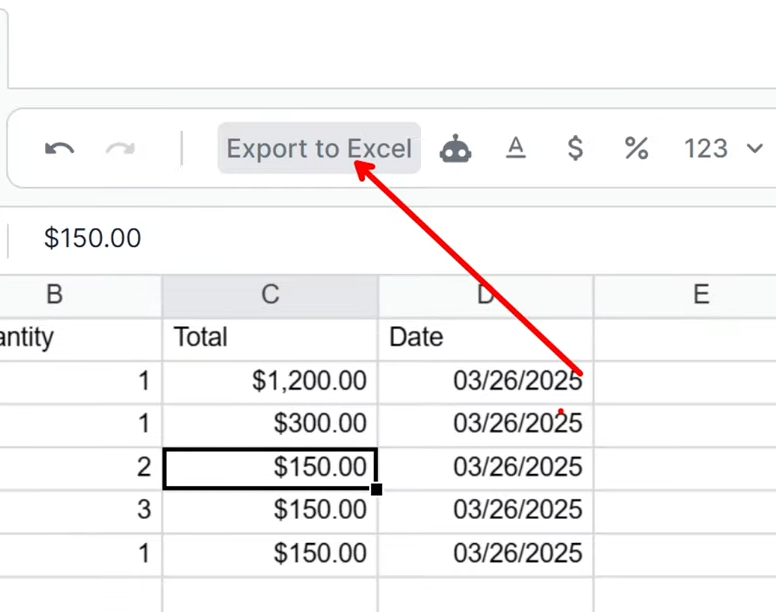
Step 9: Export to Excel
Once done, you can click Export to Excel to download the CSV file.
We hope you now know how to extract data from a PDF to Excel.